Test Logs
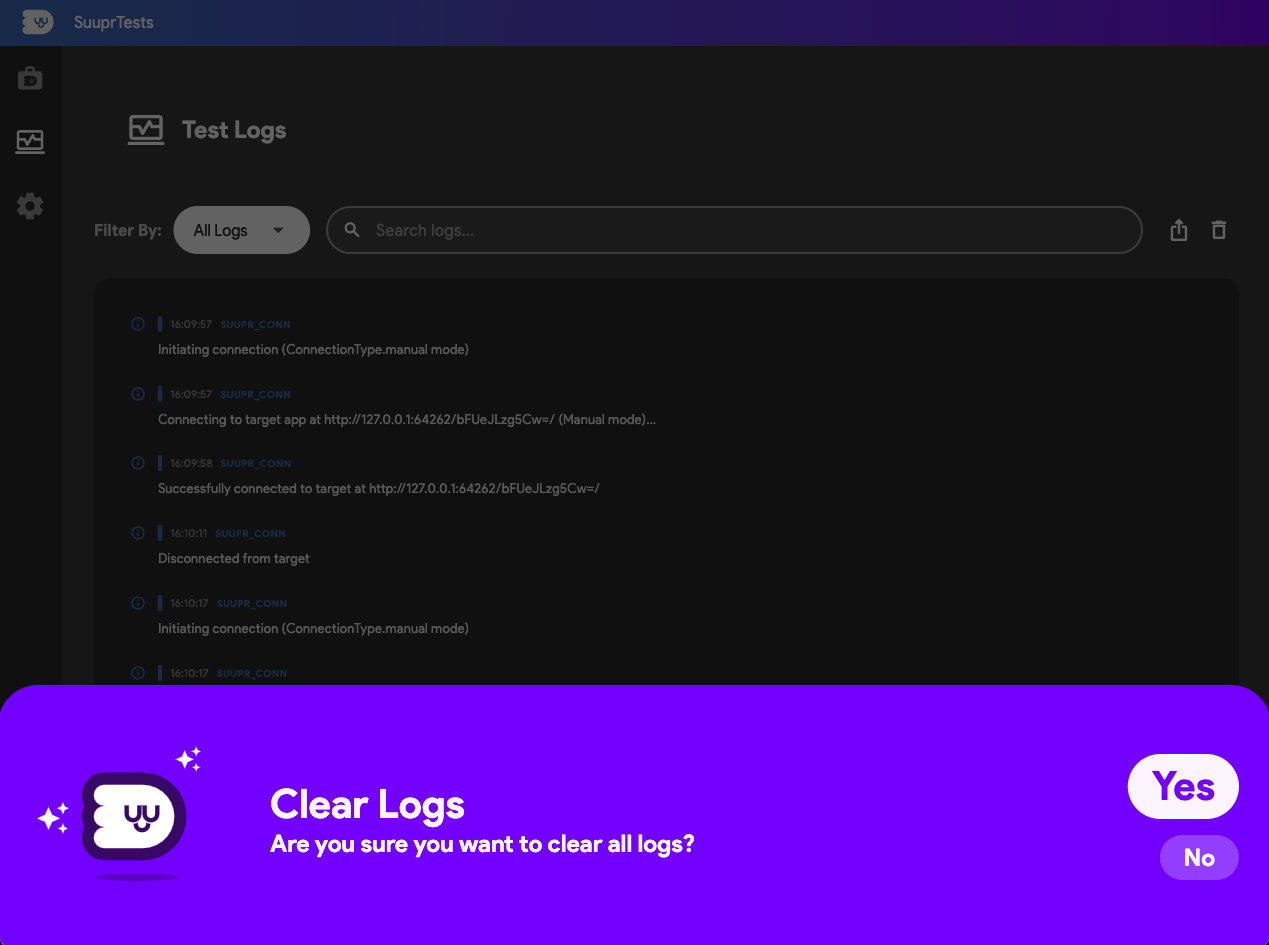
Test logs act as a comprehensive audit trail of everything happening between your automated testing sequence and the active Flutter application. Whether you are debugging a complex failure or validating successful workflows, the raw telemetry emitted gives you complete transparency into the execution environment.
View Logs
As test steps unconditionally execute during a run, the connected SuuprTestsBinding streams live execution telemetry directly back to the admin interface. Viewing these logs provides granular insight, allowing you to pinpoint exact moments when internal pointers, taps, inputs, or explicit timeouts were synthesized—and their resulting output states.

Types of Logs
The framework structures the incoming telemetry into multiple severity levels, making it incredibly easy to filter down exactly what you need when pinpointing regressions:
- Verbose: Deep, low-level orchestration events. This includes exact pixel coordinate payload mappings, WebSocket handshakes, or internal polling mechanisms running dynamically under the hood while waiting for a widget to paint.
- Info: Standard operational breadcrumbs. This indicates healthy behavior such as a successful step execution, test case initialization, or successfully synthesizing a keyboard input event.
- Warning: Potential issues that did not halt the active execution sequence, but are notable discrepancies (e.g., waiting excessively long for an animation to terminate, but still passing).
- Error: Strong test deviations, such as an assertion failure within a
VERIFYstep or an element fundamentally returningnullunexpectedly during aFINDaction. These typically flag your test run as inherently failed. - Critical: Severe binding or framework-level issues. Examples include a hard Flutter UI crash on the device, loss of the tethered WebSocket connection, or an unhandled internal exception that immediately terminated the entire pipeline.
Export Logs
When tracking down tricky regressions with a QA team, or simply maintaining historical execution records for compliance, having raw access to this telemetry is essential.
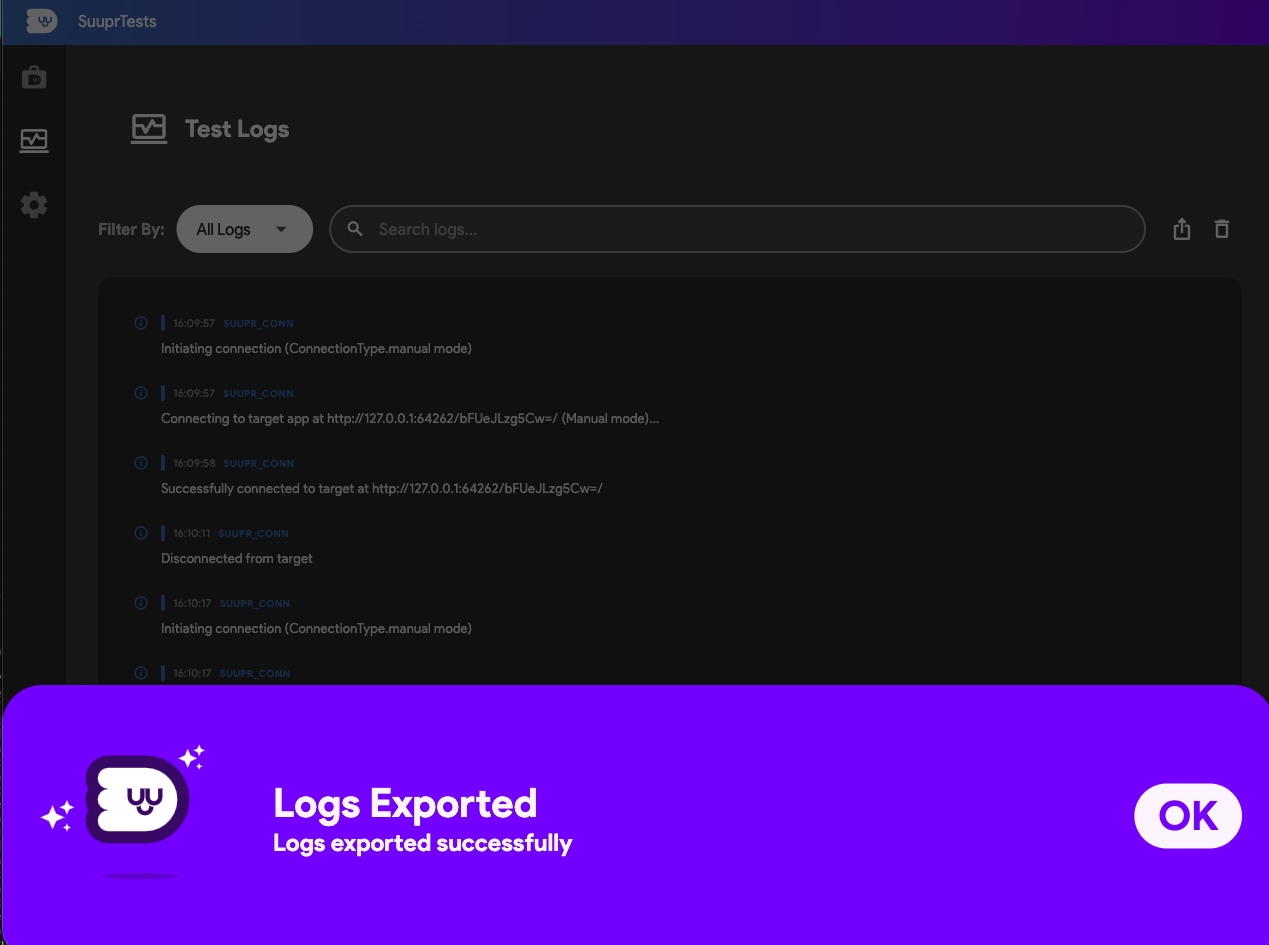
You can cleanly package and distribute the entirety of your current UI logging session by using the explicit Export Logs action.
Clear Logs
When you are rapidly iterating on a specific test step or triggering multiple reruns to solve a layout bug, your debug console might inevitably become overwhelmingly noisy.
You can confidently use the Clear Logs action to instantly purge the active console history, providing you with a fresh slate for your next execution phase.